|

Logitech Cordless Freedom Optical
Keyboard/Mouse Combination
 NOTE:
The Cordless Freedom Optical has been replaced by the Logitech Elite Duo keyboard
and Mouse combination. Please watch for a review of the Logitech Elite Duo soon.
This combination offers new features and improvements to the Cordless Freedom
Optical. NOTE:
The Cordless Freedom Optical has been replaced by the Logitech Elite Duo keyboard
and Mouse combination. Please watch for a review of the Logitech Elite Duo soon.
This combination offers new features and improvements to the Cordless Freedom
Optical.
There are an incredible variety of peripherals that a person can use with their
computer; cameras, joysticks, scanners and printers are some of the more popular
ones. There are two that just about every computer can not go without though,
a keyboard and mouse.
Keyboards and mice have come a long way in the past ten years. Keyboards now
have multifunction wheels, volume and multimedia controls, quick access buttons
and even USB ports. Manufacturers have been doing research for years into ergonomics,
and today's keyboards and mice, contoured to the shape of your hand, designed
to allow you to spend hours at your computer without strain, are the fruits
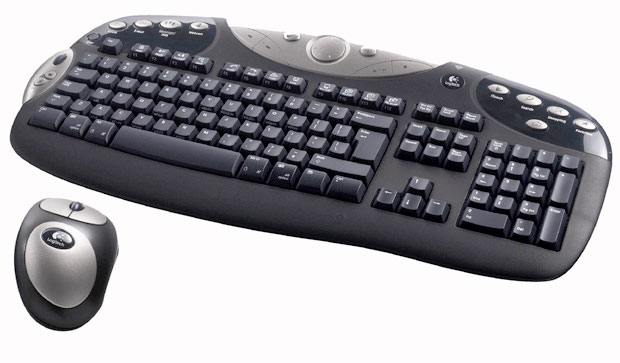
of their labour. The Logitech Cordless Freedom Optical is a keyboard and mouse
combination from Logitech that exemplies
that.
Setup
 Installation
of the keyboard and mouse is straight forward. After unpacking the keyboard
and wrist support, I installed the six included batteries, four in the keyboard
and two in the mouse. The wireless reciever has both a USB connector and a PS/2
connector. Using only the USB connector was sufficient to gain full access to
both the keyboard and mouse and all of their respective funcions. Software installation
was just as easy and completed without error. Installation
of the keyboard and mouse is straight forward. After unpacking the keyboard
and wrist support, I installed the six included batteries, four in the keyboard
and two in the mouse. The wireless reciever has both a USB connector and a PS/2
connector. Using only the USB connector was sufficient to gain full access to
both the keyboard and mouse and all of their respective funcions. Software installation
was just as easy and completed without error.
Keyboard
The Cordless Freedom Optical Keyboard features Logitech's Zero Degree Tilt
design. This design keeps the keys parallel to the desk to maximize comfort
and reduce stress. In 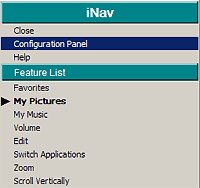 addition
to the usual 104 keys found on a Windows keyboard, the Cordless Freedom Optical
also has nine Hot Keys, media center control, addition
to the usual 104 keys found on a Windows keyboard, the Cordless Freedom Optical
also has nine Hot Keys, media center control,  volume
control and the Logitech exclusive iNav Wheel. volume
control and the Logitech exclusive iNav Wheel.
Customization of the keyboard is performed through use of Logitech's
iTouch software. iTouch allows you to configure each of the Hot Keys. I have
set mine to go directly to frequently used web sites and lauching various programs
on my computer. Configuration is quick and easily completed by double clicking
on the iTouch icon in the system tray. In addition to configuring the hot keys,
the iTouch software also provides options for setting the default location for
both music and picture files, the default application for the iNav wheel (which
is also configurable using the wheel) and miscellaneous other options.
In my daily work, I use a lot of keyboard shortcuts. Given this I was happy
to see Logitech has included some of the most common Windows shortcuts on the
keyboard. Maybe it will encourage some users to use keyboard shortcuts more
often. The keys are responsive and quiet making for a more enjoyable computing
experience.
There were two areas I found where improvements could be made on the keyboard.
As the hot keys are fully programmable, a non-permanent method of labelling
them would be nice. Additionally, the keyboard does not have any indicators
for Scroll Lock, Num Lock or Caps Lock. There is an on screen notification when
one of these keys is pressed, but no other continuous notification.
Mouse
 The
mouse, like the keyboard, has been designed to minimize stress and repetitive
strain injuries. The mouse fits comfortably in your hand and presented no problem
operating on my cluttered desk, something I have had issues with with corded
mice. The
mouse, like the keyboard, has been designed to minimize stress and repetitive
strain injuries. The mouse fits comfortably in your hand and presented no problem
operating on my cluttered desk, something I have had issues with with corded
mice.
I have been a fan of optical mice since I used my first one, and this is no
different. The lack of a mouse ball eliminates the friction the ball places
on the mouse making the mouse easier to operate, while the mouse eye had no
problems 'reading' the grain of my mahogony desktop, nor that of my arborite
laminated keyboard tray. The mouse also features very small pads on the base
on which it glides across the desktop. The size of these pads also reduces the
amount of lint they pick, increasing it's ability to operate smoothly.
One of my favourite features has been the addition of a thumb button. This
button sits on the side of the mouse and is configurable through the software.
It's default function, and most useful in my opinion, is that of a 'back' funtion.
This allows you to navigate to your previous page in your web browser, or previous
folder when browsing your hard drive. Many other custom options are available
as well. The mouse is definately designed to be used with the right hand. Apart
from the thumb button on the left hand side of the mouse, it physically fits
in the right hand much better than the left, sloping down and to the right naturally
as your hand would.
Batteries
I have been putting off this review in hopes of being able to give an accurate
portrayal of how long the batteries last, an issue I have heard many problems
with with other wireless devices. I have been using the keyboard and mouse for
close to six months. The two AA alkaline batteries supplied with the mouse lasted
almost three months. As it stands, I have not yet had to change the batteries
in the keyboard and the battery status indicator still shows the batteries are
in good condition.
Conclusions
The Logitech Cordless Freedom Optical Keyboard and Mouse is an excellent combination
of for your PC. The combination of a full featured wireless keyboard with a
comfortable optical mouse leaves little to be desired. Apart from the missing
indicators for Num Lock, Scroll Lock and Caps lock, I find little room for improvement
with this combination. At an estimated street price of $99.95 US makes this
combination an excellent value.
Return to FreeHelp Software
Reviews Home Page
Return to the FreeHelp Headquarters
Return to PCIN.net Home Page
|