|

Avocent SwitchView KVM Switch
As computers continue to come down in price, more and more people
are finding themselves with several computers. The kids may have
their own so they can play games and not mess up Dad's computer.
Mom might have her own so she can work from home. Or maybe you
are on your own but like to have different computers for different
purposes. Whatever the reason, having all of these computers can
take up a lot of room. If you are able to have the computers in
one location, then one of the best things to do is to get a KVM
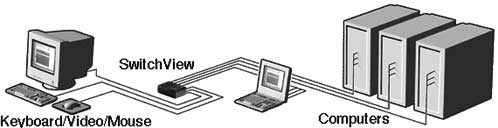
(keyboard, video (monitor), mouse) switch. This allows you to
have one keyboard, monitor, and mouse connected to more than one
CPU at a time. The keyboard monitor and mouse would plug into
the switch and the CPUs would plug into the switch. Then with
the press of a button, you can access each CPU individually. The
diagram below shows how this would work:
I recently obtained a KVM switch from Avocent
(1.877.992.9239). They are well known for their KVM switches,
and make models that handle anything from 2 CPUs to dozens in
a variety of ways. I tested the basic 4-port SwitchView
product.
Installation
 Installation
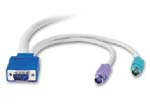
is pretty simple. Just plug the cables in and everything works.
The cables are colour-coded for easy identification. I also liked
the way the cable was constructed. There is a large round cable
that goes end-to-end. Then the keyboard and mouse cables come
out of the ends. This saves the hassle of working with more than
one cable. And the round design makes the cable easy to bend.
I've seen other cables that are flat (essentially 3 cables stuck
together side-by-side), and they will only bend certain ways. Installation
is pretty simple. Just plug the cables in and everything works.
The cables are colour-coded for easy identification. I also liked
the way the cable was constructed. There is a large round cable
that goes end-to-end. Then the keyboard and mouse cables come
out of the ends. This saves the hassle of working with more than
one cable. And the round design makes the cable easy to bend.
I've seen other cables that are flat (essentially 3 cables stuck
together side-by-side), and they will only bend certain ways.
 I
tested the SwitchView
in 2 different locations. At one location (connecting only a single
Compaq computer) I was able to set everything up without having
to reboot and everything worked. At another location (connecting
a Compaq laptop and a generic computer), I had to reboot in order
to have either computer work with the SwitchView.
Whether or not you need to reboot will be dependent on the type
of computer you have, and whether or not it will "like"
being without a keyboard or mouse when you are changing the cables. I
tested the SwitchView
in 2 different locations. At one location (connecting only a single
Compaq computer) I was able to set everything up without having
to reboot and everything worked. At another location (connecting
a Compaq laptop and a generic computer), I had to reboot in order
to have either computer work with the SwitchView.
Whether or not you need to reboot will be dependent on the type
of computer you have, and whether or not it will "like"
being without a keyboard or mouse when you are changing the cables.
The SwitchView
comes with a CD that has a manual in PDF format on it in case
you need a reference.
Testing
At the one location where I was only connecting a single Compaq
computer, I used a standard keyboard and a Microsoft WheelMouse.
As I stated above, everything worked immediately, including the
wheel scrolling and button. It couldn't have been easier.
I did find that with only one computer connected, the display
was dimmer than usual. I contacted Avocent and they told me that
the switch gets its power from the connected computers. It is
made to have more than one computer connected, and since I only
had one computer connected, the display was slightly dimmed. This
makes sense. If you were only going to connect one computer, why
would you get a KVM switch?
At the other location I was using a standard keyboard and a Logitech
Optical Mouse (USB). The mouse came with a USB to PS/2 adapter
so I used that to connect the mouse. Once I had rebooted the computer,
I found that the mouse jumped all over the place. I looked in
the manual, and it described a couple of commands that can be
issued to the switch in order to reset it, scan it, etc. I issued
a command that was supposed to make the Logitech mouse work with
the switch, and it worked perfectly.
With the two computers plugged in, the display was the brightness
that I expected. I was able to switch from the 800x600 view of
my laptop to my 1600x1200 display of my desktop without problems.
All of the functions of my keyboard and mouse functioned exactly
as if the devices were plugged directly into a computer.
Purchase
There are several models in the SwitchView
series, but the basic 4-port SwitchView
that I tested sells for approximately $140 US or $200 CDN. A 2-port
model is available for slightly less (but for the difference in
price, you are better off buying the 4-port model).
Conclusions
The SwitchView
KVM switch is an excellent product for an excellent price. It
has basic functionality, but does it very well. The problems that
I experienced didn't take very long to solve. I never experienced
any frustration working with the product, and my emails to Avocent
Canada were met with quick responses. I would recommend the SwitchView
KVM product to anyone.
Return to PCIN Hardware Reviews
Return to PCIN Home Page
|