|

It seems like the biggest craze in online publishing right now are blogs.
These "weB LOGS" originally started out as online journals. They've
since become quick and easy ways for companies to communicate with their
target audiences.
The problem is that there are numerous blogging platforms, and it isn't uncommon
for someone to be contributing to several blogs, all hosted on different platforms.
BlogJet is client software
that tries to provide you with a common interface to the blogging platforms
of your choice.
Installation
The setup file is easily downloaded from the BlogJet website.
At a size of just over 2 MB, it can be downloaded quickly on virtually any
connection type.
There aren't really any custom options when installing. You have the standard
choices of where to install it, and what shortcuts to create. You can also
choose to install a BlogJet This! add-on to both Internet
Explorer and Firefox.
The whole install process only took about 30 seconds, and the software was
ready to use.
The first time you use the software you are prompted to enter a key or continue
trying the software. As far as I can tell, the software is fully functional
during the trial period. I tested the software both before and after I had
entered my reviewer's key, and it seemed to work exactly the same
Testing
Note: Please remember that not all blogging platforms are created
equal. Not all features/options of BlogJet will
be available for all blogging platforms. I couldn't test all platforms and all features,
but I have done my best to cover the main points.
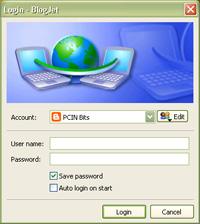 The
first thing to do is to setup your accounts. There are currently 22 different
blogs or APIs to
connect to. I have several blogs hosted by Blogger,
and a couple of blogs hosted on my own sites using b2evolution.
Chris also uses a
MovableType engine
for his blogs. There is a wizard that walks you through the steps of connecting
to your blog. Based on the blogging platform you are using, it automatically
fills in some of the technical details for you, and prompts you for details
that are specific to you (domain, username, password, proxy setup, etc.). It
connects right away and you then choose which blog you want to edit. For instance,
on my Blogger account, I have
access to 3 blogs. When my credentials were entered in BlogJet,
I was then presented with all 3 blogs and I had to choose which blog I wanted
to connect to. You also have the option to use FTP to upload
files to your blog. This is very handy as it allows the software to upload
images and other files that you place in your posts automatically. While setting
this up, you also have the option to test the ftp configuration.
At this point you are done setting up and are ready to go. I do want to point out that due
to the fact that there are 2 different checks (one for basic login, one for
ftp login) before you finish, you can be comfortable that you can start blogging
without connection issues. The
first thing to do is to setup your accounts. There are currently 22 different
blogs or APIs to
connect to. I have several blogs hosted by Blogger,
and a couple of blogs hosted on my own sites using b2evolution.
Chris also uses a
MovableType engine
for his blogs. There is a wizard that walks you through the steps of connecting
to your blog. Based on the blogging platform you are using, it automatically
fills in some of the technical details for you, and prompts you for details
that are specific to you (domain, username, password, proxy setup, etc.). It
connects right away and you then choose which blog you want to edit. For instance,
on my Blogger account, I have
access to 3 blogs. When my credentials were entered in BlogJet,
I was then presented with all 3 blogs and I had to choose which blog I wanted
to connect to. You also have the option to use FTP to upload
files to your blog. This is very handy as it allows the software to upload
images and other files that you place in your posts automatically. While setting
this up, you also have the option to test the ftp configuration.
At this point you are done setting up and are ready to go. I do want to point out that due
to the fact that there are 2 different checks (one for basic login, one for
ftp login) before you finish, you can be comfortable that you can start blogging
without connection issues.
Once the accounts are setup, you can choose to have a "default" account
that you login to automatically when the program starts. This is particularly
handy if you only have 1 blog and don't need to be presented with the options
of choosing a different one.
 The
main BlogJet screen is pretty basic. There is a field for the title or subject,
and then a WYSIWYG editor below. This is where you type the contents of the
blog posting. You'll notice at the bottom of the window there are 3 tabs. The
NORMAL tab is the WYSIWYG editor. You can use the buttons on the toolbar to
add some rich formatting to the posting. If you prefer to write code yourself,
or if your blog doesn't like some of the code that BlogJet generates (as I
experienced a couple of times), then you can easily choose the CODE tab and
tweak it. From either the NORMAL or CODE tabs, you are able to choose a category
for your blog. The PROPERTIES tab gives you the option to change the date and/or
time of the posting, as well as change options for comments, trackbacks,
pings, and more. These features are only available if your blogging platform
supports it. For my b2evolution blogs,
I could only change the date and/or time as the other features aren't available
in b2evolution. The
main BlogJet screen is pretty basic. There is a field for the title or subject,
and then a WYSIWYG editor below. This is where you type the contents of the
blog posting. You'll notice at the bottom of the window there are 3 tabs. The
NORMAL tab is the WYSIWYG editor. You can use the buttons on the toolbar to
add some rich formatting to the posting. If you prefer to write code yourself,
or if your blog doesn't like some of the code that BlogJet generates (as I
experienced a couple of times), then you can easily choose the CODE tab and
tweak it. From either the NORMAL or CODE tabs, you are able to choose a category
for your blog. The PROPERTIES tab gives you the option to change the date and/or
time of the posting, as well as change options for comments, trackbacks,
pings, and more. These features are only available if your blogging platform
supports it. For my b2evolution blogs,
I could only change the date and/or time as the other features aren't available
in b2evolution.
It is my experience that b2evolution has
some quirky formatting restrictions. I run into this when I use the online
control panel all the time. It tries to convert certain types of formatting,
and restricts other formatting, and so can cause an error. I had similar problems
when using BlogJet. But everything
is handled very gracefully. You just acknowledge the error, and then make the
corrections. The program doesn't crash, and you don't lose your post. In fact,
after getting used to the software, I actually had fewer problems with
BlogJet than I do when I use
the online control panel.
 There
is an option to minimize the software to the system tray. In the image on the
left, the third icon from the left on the top row is for BlogJet (it
looks like a person with a cartoon voice bubble by its head). This allows you
to keep BlogJet open all the time without having it take up room on the taskbar.
When you right-click on the icon, you are given the option to restore the software,
to work in Micro Mode, or to exit the program. Micro
Mode is interesting. It opens up a very small window just on top of the system
tray where you can type a message. I assume this is so you can have a web page
or program open on the screen that you want to post about, and the Micro Mode
window is so small that it won't interfere with what you're trying to see.
I didn't really find much use for it. While working in Micro Mode, you can
restore the program to a regular window. There
is an option to minimize the software to the system tray. In the image on the
left, the third icon from the left on the top row is for BlogJet (it
looks like a person with a cartoon voice bubble by its head). This allows you
to keep BlogJet open all the time without having it take up room on the taskbar.
When you right-click on the icon, you are given the option to restore the software,
to work in Micro Mode, or to exit the program. Micro
Mode is interesting. It opens up a very small window just on top of the system
tray where you can type a message. I assume this is so you can have a web page
or program open on the screen that you want to post about, and the Micro Mode
window is so small that it won't interfere with what you're trying to see.
I didn't really find much use for it. While working in Micro Mode, you can
restore the program to a regular window.
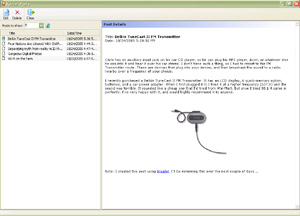 You
can also retrieve previous posts and edit them in BlogJet. From the Blog menu,
choose Get Recent Posts. Another window opens up and you can view up to the
last 100 posts. You can then double-click on
the message title and edit it. The Recent Posts window is divided into two
parts. On the left is a list of the recent posts. There is a drop-down option
to view from 5 up to 100 posts. It's hard to tell in the screenshot on the
left, but the 5 previous posts titles each have an icon beside them. The first
one and the last one have a different icon. This indicates that the posting
has an image in it. On the right is a preview of your post. Remember when viewing
the post that it may not look this way online, depending on what stylesheet your
blogging platform is implementing. You
can also retrieve previous posts and edit them in BlogJet. From the Blog menu,
choose Get Recent Posts. Another window opens up and you can view up to the
last 100 posts. You can then double-click on
the message title and edit it. The Recent Posts window is divided into two
parts. On the left is a list of the recent posts. There is a drop-down option
to view from 5 up to 100 posts. It's hard to tell in the screenshot on the
left, but the 5 previous posts titles each have an icon beside them. The first
one and the last one have a different icon. This indicates that the posting
has an image in it. On the right is a preview of your post. Remember when viewing
the post that it may not look this way online, depending on what stylesheet your
blogging platform is implementing.
The program is very easy to use, but when I wanted to find out more about
the PROPERTIES tab, I realized that there is no help file that is installed
with the program. You must go online to get help. There is a wiki that has
been setup to try to get the BlogJet community
to write the documentation for BlogJet.
Unfortunately, even though BlogJet
has been around for a while, when I checked, the
BlogJet Wiki still
had no entry for the PROPERTIES tab. In fact, at the time of this review, the
entire BlogJet
Wiki is rather disappointing. The software is so easy to use, that you probably
won't need to use it, but when you do want to get some extra information, it
currently isn't there. Hopefully this will change as more people contribute to
the wiki.
Conclusions
BlogJet is an excellent program.
When I first used it, I didn't think it was any better for me to use than the
online control panel. But as I've played with it more, I'm finding it very
handy to have open all the time and post as I need to. It's small, doesn't
affect the performance of the computer at all, and is very easy to use. You
should definitely download the trial and give it a try.
BlogJet comes with a 30-day
trial. If you decide to purchase a single license, you can do so directly
from BlogJet for $39.95. The software comes with a 30-day money back
guarantee. Once purchased, you are entitled to all updates to the version
you are using (1.x) for free, and then new versions (2.x) will have upgrade
pricing. There is also a family license that lest 5 people use the software
for $69.95. There are also licenses available for larger volumes of
installations, educational institutions, and not-for-profit organizations.
Return to FreeHelp Software Reviews Home Page
Return to the FreeHelp Headquarters
Return to PCIN.net Home Page
|