|


Microsoft gets in a
lot of trouble because it bundles too much with Windows. Well, the opposite
is true when it comes to Windows
Mobile. There is very little
extra included with the basic operating system, and so a user must search for
the best, most useful utilities. Omega
One Software has one of these truly
useful utilities in Battery Pack Pro. I used Battery Pack Pro v1.1.1 for several
months, and recently had a chance to review the most recent offering, Battery
Pack Pro v2.1.
Installation
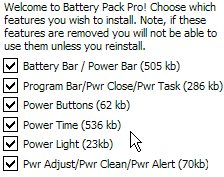
The installer is about 3 MB in size, and the installation process is initiated
on the PC. When you install the software, there area few windows to click through
that describe a few of Omega One's other utilities: Journal
Bar, 1-Calc,
and
Pocket Mechanic.
You can choose to install a trial of each or any of these utilities. I chose
not to. The install process only took a minute. Once the ActiveSync installer
has copied all the files over and initiated the install on the Pocket PC, you
only have a few steps to go through to finish it. You can choose to install
any or all of the various components. At the very end you need to perform a
soft reset on your Pocket PC, and then the
software
is
ready
to
use.
Testing
When I first heard of Battery
Pack Pro, I assumed that the program
helped you monitor your Pocket PC battery. It does that, much so much more.
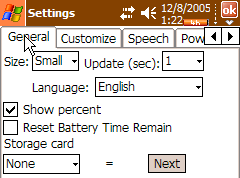
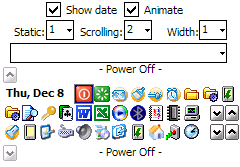
The following screenshots and points show and explain the various features:
 |
 |
 |
1. Power Store |
2. Setting various options |
3. Configuring the Program
Bar |
|
 |
 |
 |
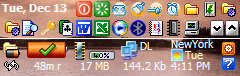
4. The Program and Battery
bars |
5. Power Time |
6. Power Task |
- Battery Bar - This displays information about your battery, memory, storage
card, network connection and more. You can customize the icons used, as
well as get more information regarding the usage history of many of these
items. The lower half of Screenshot 4 above shows Battery Bar. At this point,
my batter is fully charged. It shows the memory usage, network connection,
and the time in New York.
- Program Bar - This is similar to the Quick Launch toolbar in Windows. You
can create shortcuts to your favourite programs. The Start Menu only holds
a few icons, while this lets you add as few or as many as you reasonably
need. The top half of Screenshot 4 above shows the Program Bar. There are
2 rows of icons, with the bottom row having the ability to scroll through
more. Screenshot 3 above shows the configuration option for the Program Bar.
You can choose how many rows, and can move the shortcuts around and add/remove
any that you need.
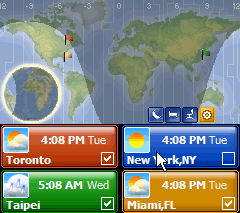
- Power Time - This is a new addition to the Battery Pack Pro product. You
can see a nice picture of the globe (it shows where it's day and where
it's night). It also notes up to 4 locations on the map. This information
can also be shown on the Battery Bar (as explained above). With the Journal
Bar installed (which I didn't) you can also get extended forecasts.
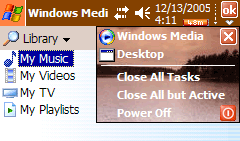
- Power Task - You can choose to actually close programs
when you click the X. Or you can let them run, and terminate them easily
later. Screenshot 6 shows that I have Windows Media Player running. Hitting
the little down arrow under the OK button brings up the Power Task screen.
You can choose to close any running programs, or close them all. There are
also other options that can be configured.
- Power Bars - This displays basic information in the title bar of your Pocket
PC. The most useful is showing how much battery you have left. In Screenshots
1, 2, and 6 you see the date, the time, and then an orange bar. This orange
bar is a power bar that shows you the battery power remaining.
There are also a few other little utilities that you can use to help keep
your system in peak condition.
- Power Clean - This lets you quickly (and automatically if you choose) delete
temp and other unneeded files.
- Power Buttons - You can tweak how the physical buttons work on your Pocket
PC. If you tap it, one application can launch, if you hold it, another application
can launch.
- Power Alert - This adds sounds to various alarms that you may have on your
system.
- Power Store - This is similar to the Battery Bar, but it gives you
much more detailed information about the usage of those items over a period
of time.
- Power Adjust - You are able to customize all sorts of settings on your
Pocket PC with this utility.
- Power Light - This utility just causes the screen to be at its brightest
and to be entirely white, thus acting as a flashlight. I suppose it could
be useful,
but the problem is that the screen just glows, it doesn't shine/reflect
out at things in front of you.
I'm sure that most people will find the Battery Bar, the Program Bar, and
Power Task most useful. It was certainly that way for me. I guess the Battery
Bar isn't crucial, but it provides useful information on the Today screen.
I don't think I could live without some sort of program launcher on the Today
screen. I currently have 22 shortcuts in my Quick Launch toolbar of Windows
XP. I'm used to having shortcuts easily accessible. The Program Bar can be
as empty or as full as you want. I found that after installing it, I almost
never used the Start Menu anymore. Lastly, even though there is a Task Manager
built into Windows Mobile, Power Task gives a quick and easy way to end running
programs. I use it often.
The software is very intuitive, but if you do need help, there is extensive
help both on the Omega One web site as well as included with the program on
the Pocket PC. As well, after you install the program for the first time, there
are several screens of useful information that you can read through.
I didn't find that running Battery Pack Pro affected the performance of my
Pocket PC much. Of course it did affect it slightly (this is strictly observation,
I did not measure anything). Whenever you have things running, it won't be
as fast as if it were a new/clean device.
But the
slight
dip in performance is made up for in added functionality.
Conclusions
Battery Pack Pro is great. I would highly recommend it to anyone. It fills
in the gaps where the built-in utilities don't go far enough. You have a lot
of flexibility in what you install, and when you actually run what you installed.
It is definitely worth trying!
If you have a previous version of Battery
Pack Pro, you can upgrade for
$9.99. The full version of Battery
Pack
Pro
v2.1 can
be purchased for $29.99 from Omega One (via Handango). There are also discounts
available if you buy software bundles from Omega One Software (includes various
combinations of 1-Calc, Journal Bar, etc.).
Return to FreeHelp Software Reviews Home Page
Return to the FreeHelp Headquarters
Return to PCIN.net Home Page
|