|

Computer users are always demanding more. They want more features.
They want more attractive interfaces, they want add-ons. The problem
is in order to provide all of this, you need a lot of available
hard drive space. Most programs come with an option to do a CD
install. This means that only the basics are copied to the hard
drive and the bulk of the program is then run from the CD. This
can save you a lot of space, but it means that you need a CD-ROM
drive with decent speed. If you have a slow CD-ROM drive (or even
if you have a faster one), you can also increase the performance
of your drive by using a caching program.
Your hard drive uses a caching system. That is what virtual memory
is (sometimes referred to as a swap file). Information is cached
(stored) for quicker access later. CD-Quick Cache is a program
that does this for CD-ROM drives. Windows comes with the ability
to cache small amounts of CD data, but it isn't enough. CD-Quick
Cache accelerates CD-ROM drive performance, resulting in faster
program loading and decreased data search time. By storing frequently
used CD-ROM information on your hard drive or in RAM, CD-Quick
Cache makes it available in a fraction of the time it would take
to retrieve it from your CD-ROM drive, even if you're using the
latest 48X drives.
Unlike simple cache programs, CD-Quick Cache uses an intelligent
caching algorithm and dynamic read-ahead buffering to ensure enhanced
performance. Its persistent disk cache feature lets the program
keep track of up to 256 different CD-ROM titles on up to 32 CD-ROM
drives. CD-Quick Cache can save your cached data and volume information,
even after you shut down your computer. CD-Quick Cache also offers
smart caching of full motion AVI, QuickTime and MPEG video clips,
allowing your games and education programs to run faster.
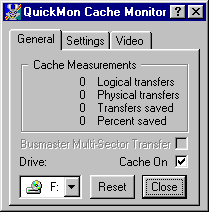
The cache monitor has 3 screens. The first screen shows the statistics.
The program keeps track of how often a program requests a read
from the CD, and it tells you how efficient the program is. You
can view stats from each CD-ROM drive you have in your system.
If no CD is present, then the numbers read 0 (obviously). You
also have the option to temporarily suspend caching.
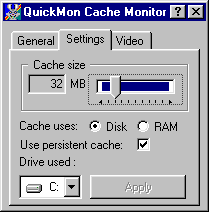
The second screen is the settings tab. You can choose how big
you want your cache to be (how much hard drive space will it use).
You can also choose to use either your hard drive or your memory
for the cache. You can specify which partition you wish to use.
You can also choose what type of caching method the program uses.
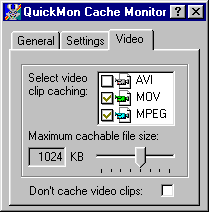
The third and last screen gives you the options available when
caching videos. You can choose not to cache at all, or only cache
certain types of videos.
The program comes with an excellent help file that describes
how the program works and also how a CD-ROM drive works. You can
visit the Circuit
Systems web site to view some of these explanations or you
can read the article here
at PC Improvements.
You can download a registered version of CD-Quick Cache for approximately
$29.00.
Return to FreeHelp Software
Reviews Home Page
Return to the FreeHelp
Headquarters
Return to PCIN.net Home Page
|