|
Every computer owner I know has complained of the same ailment, a slow computer.
They all tell me that their computer is slowing down compared to how responsive it was
when they purchased it. Of course there are some quick fixes (remove unnecessary
software and files, clean up the registry, and one trick I like to use, rebuild
your Windows profile) there is one problem that will still exist. A fragmented
hard drive.
Hard drive fragmentation is inherent in the way file systems operate. The computer
writes files to the hard drive in the first available space. If the space is
not large enough, it will split the file and write it in two or more locations.
By doing so, accessing these files will take longer. As more disk reads and
writes are required in order to open or close a file, your computing experience
will be slower.
To combat this ongoing problem, Executive Software
has recently released Diskeeper
7.0 Second Edition. Diskeeper has been the forerunner in disk defragmenting
utilities for many years and maintains 98% of the market share of Enterprise
Degragmentation utilities. With Diskeeper 7.0 Second Edition, Executive Software
has added the ability to pick one of three modes to suit the needs of your system.
- The quickest possible defrag
- The largest possible free space consolidation
- Maximum Disk performance
Smart Scheduling options now also include the option to run the utility while
the screen saver is active.
My tests were conducted using Microsoft Windows XP Professional, AMD Athlon
Processor (1000 MHz), 640 MB RAM, a 30 GB HDD partitioned into three partitions:
- 7.6 GB Boot Partition, NTFS
- 8.0 GB Data Partition, NTFS
- 12.0 GB Data Partition, NTFS
and a 2.0 GB external SCSI HDD.
Testing
I performed a series of tests including booting the computer, copying files,
launching software and time to defragment the hard drive.
Test 1. Boot Time
I tested the time it took to boot the computer from being completely turned
off up until the initial Login screen appeared.
| Before Defragmentation |
1:11 |
| After Defragmentation with XP Built In Defragmenter |
1:01 |
|
After Defragmentation with Diskkeeper 7.0 SE
|
0:58 |
Defragmentation using Diskeeper SE resulted in a boot time decrease of 13
seconds, or 18.3%. The speed increase over that of the built in defragmenter
was only marginally better, however using Diskeeper allowed for a Boot-Time
Defragmentation which also defragments the page file and MFT table. At the end
of the complete defragmentation, only one excess file fragment remained while
the built in defragmenter left 1541 excess fragments in 28 files.
Test 2. Launch Outlook
| Before Defragmentation |
0:14 |
| After Defragmentation with XP Built In Defragmenter |
0:11 |
|
After Defragmentation with Diskeeper 7.0 SE
|
0:09 |
Once again, Diskeeper yielded a performance increase; 35% over the same test
without defragmentation.
Test 3. Moving Files
To test perfomance moving files before and after defragmentation, I used one
large file (1.8 GB) and 4000 small files (total size 19.6 MB). I copied the
files from the C:\ partition to the D:\ partition both before and after defragmenting.
| |
Large Files |
Small Files |
| Before Defragmentation |
8:14 |
1:01 |
| After Defragmentation with Diskeeper 7.0 SE |
6:27 |
0:41 |
Difference |
2:47 |
0:20 |
Defragmenting the hard drive resulted in a performance gain of 21.7% when copying
one single large file and 32.8% when copying a large amount of small files.
Test 4. Defragmenting Speed
To ensure accurate results, I made an image of the external SCSI disk drive
prior to running the Windows XP defragmenter and restored the image prior to
running the second test. The drive contained 1.46 GB of data (14,427 files with
152 MB (12 %) free space.
| Defragmentation with XP Built-In |
5:22 |
Defragmentation with Diskeeper 7.0 SE
|
3:45 |
|
Speed increase using Diskeeper 7.0 SE
|
30% |
Features
Diskeeper has several notable features to make your system more reliable and
perform better.
- FragGuard helps to eliminate fragmentation of the MFT (Master File Table)
and Page File while speeding up the process of Boot Time defragmentation when
necessary.
- Boot Time Defragementation allows Diskeeper to defragment both the MFT and
the Page File, neither of which can be defragmented while Windows is in use.
- Set It and Forget It provides the ability to schedule defragmentation of
your system in various configurations.
Pricing
Executive Software Diskeeper comes in three versions. Home, Professional and
Server versions. All three offer the same quick speed and extensive defragmentation
capabilites. The Server version allows remote installation and management of
Diskeeper installations on other servers and workstations. The Professional version
can be managed and invoked across a network but cannot manage other installations.
The Home version can not be managed across a network. Pricing for the three
products is as follows:
| Product |
Electronic (Download) |
Packaged CD |
| Diskeeper Home |
$29.95 |
$34.95 |
| Diskeeper Professional |
$44.95 |
$49.95 |
| Diskeeper Server |
$249.95 |
$259.95 |
Diskeeper Home or
Diskeeper Professional
may be purchased online or any of the Diskeeper products may be purchased from
http://www.diskeeper.com.
Conclusions
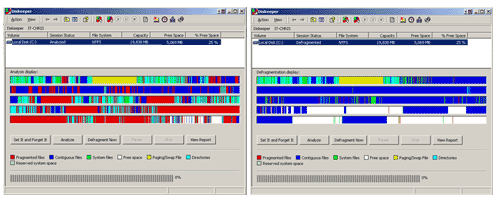
In my testing, Diskeeper was able to take a highly fragmented disk and quickly
defragment it. Below you will see how one hard drive appeard in Diskeeper prior
to defragmentation, on the left, and after, on the right. Red is an indication of framentation.
Disk defragmentation causes a serious degradation in performance. Defragmenting
my system provided performance increases of up to 35%. After
defragmenting my drives, performance of the system improved; programs and
menus opened faster, files copied faster and overall, the system ran better.
The ability to schedule defragmentation means less regular maintenance for
the end user, and in an corporate environment, results in a direct cost savings
for the company. For the home user, Diskeeper is a very inexpensive addition
to make a dramatic change. For the corporate user, the failure to properly defragment
server and network storage far outweighs the cost of the product. Testing
has shown that Executive Software Diskeeper is a valuable assest to an software
inventory.
Return to FreeHelp Software
Reviews Home Page
Return to the FreeHelp
Headquarters
Return to PCIN.net Home Page
|