|


The recent movement away from film based cameras to digital has created the need for an effective way to manage those digital files. In the
past, photos and slides were stored in boxes and envelopes and if you were diligent, possibly even albums. Digital photography has also created
an environment that allows for the creation of many more images than with film.
Photoshop Elements 2.0 plus Photoshop Album 2.0
by Adobe can help you edit, correct, organize, share and archive you digital photos, whether they
are from a digital camera or from some other source.
Photoshop Elements 2.0
Photoshop Elements features many of the same tools as it's bigger brother, Adobe Photoshop CS
, that aid in the correction and manipulation of photographs digitally. Having used both products,
it is evident that most amateur photographers, and even some more serious photographers
can meet all of their needs with Photoshop Elements.
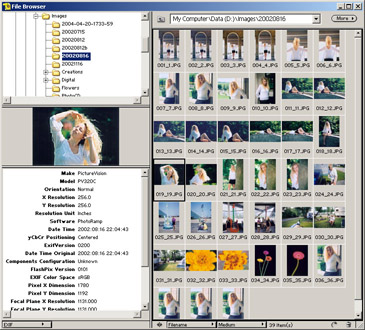
The first thing to strike me with Photoshop Elements was the file browser.
This tool is an efficient means to find a particular image. It presents a listing
of the folders on your computer, a series of thumbnails for each folder you
click on within the browser, a thumbnail of a selected image and additional
metadata (EXIF)
information all in one easy to use location. Each pane within this window is
adjustable so that you may modify the amount of information presented to you
browsing folders. Presenting the metadata is a great feature for photographers
who are interested in the more technical details of their photography, and the
tool is an excellent way to browse files for any photographer.
Photoshop Elements features what Adobe calls Recipes. Recipes are short instructional
cards that provide the information you need to complete a task yourself, while
also including links to let the software perform some (but not all) of the steps
you need. From fixing dust and scratches to colorizing a black and white photo,
the recipes serve as a guide for photo retouching principles many people may
not be aware of. For the most reluctant users, Quick Fix is the easiest way
to correct images. Quick Fix provides the most used correction tools in one
layout while guiding you through the process. Additionally, Photoshop Elements
also has several 'auto' tools to aid in your manipulations.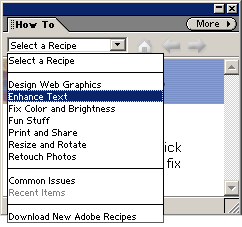
Some other options for modifying images include lighting adjustments (modifying
back lighting and fill flash), various customizable brushes for use with many
of the tools in the tool box, advance selection and compositing tools and an
automatic utility for straightening crooked photos. No more sloping horizons!
Elements ships with a wide range of filters that may be used to add features
to your photography. Filters to blur, sharpen and add noise (simulated film
grain) are all very useful. Photoshop Elements is compatible with Photoshop
plugins which can extend the capabilities of the software to include additional
functionality. Many plugins exist, both commercial and free and can be found
by doing a quick search
on the Internet.
As with the full version of Photoshop, Elements utilizes Layers. Layers allows
edits to be made to the image without risk of losing data. Layers may be turned
on and off at will, transparency modified to decrease or increase the effectiveness
of a layer, and layer properties applied to change the way a layer reacts to
the layers around it. The colorize recipe uses layers in coloring a black and
white photograph. Color is applied to the layer rather than directly to the
image allowing that layer to be fine tuned for the color effect you are looking
for.
|
Repair faded
photos |
|
|
Before |
After |
Photoshop Elements can read and write many different file types
providing a wide range of import and export capabilities. Files may be exported
to a web gallery, PDF Slideshow, or uploaded to online sharing service Shutterfly.com.
Save To Web will save a copy of the image with specific user defined settings
that will provide the best quality image for use on web sites. With batch processing,
many photos may be converted to another format, resized and renamed automatically
for use in web albums or just for better naming.
Photoshop Elements handles a wide array of file types, including RAW, has extensive
brushes and tools, automatic corrections and recipes to help guide you through
processes you may not be familiar with. Effects, styles and filter capabilities
increase it's value allowing many variations to be created from your images.
Photoshop Album 2.0
A new problem facing photographers is finding an easy way to catalog their digital
images. It is not uncommon to take and keep thousands of images, which presents
a problem when searching for a particular picture. Adobe Photoshop Album 2.0
solves that.
Photoshop Album 2.0 quickly and efficiently catalogs nine different file formats:
JPEG (JPG), GIF,
BMP, TIFF,
PSD (Photoshop), PDD (PhotoDeluxe),
PDF, PNG and Camera RAW format and can also import several video and
audio formats. Files can be imported from several sources including your camera
or card reader, scanner, computer file system, mobile phone or online photo
sharing service.
The Interface
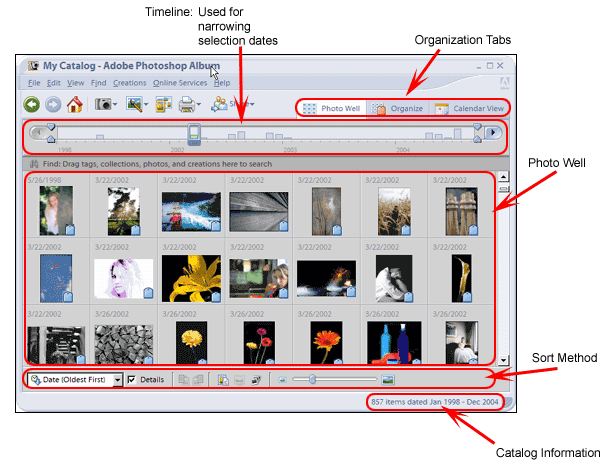
Once imported, Photoshop Album can organize photos in a variety of ways. The
Photo Well provides options to sort your files by date, batch import or folder
location. The sorting is in the Photo Well is used in all methods of view images
in Album with the exception of when using a Collection within Album. Further custom organization
can be accomplished by using tags.
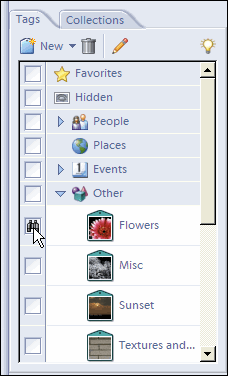 Tags
allow keywords to be easily applied to one or many images. The Tag Pane shows
all of your tags and makes it easy to apply multiple tags to an image. Using
tags to search is as easy as selecting the tags you wish to search for. Tags
are organized into categories, sub-categories and tags within either one of
those. It is very easy to create custom categories and tags to suit your needs.
This feature made it very quick and simple to create tags for each of my family
members, friends, and different subject matter and apply those tags to the specific
photos they apply to. Tags
allow keywords to be easily applied to one or many images. The Tag Pane shows
all of your tags and makes it easy to apply multiple tags to an image. Using
tags to search is as easy as selecting the tags you wish to search for. Tags
are organized into categories, sub-categories and tags within either one of
those. It is very easy to create custom categories and tags to suit your needs.
This feature made it very quick and simple to create tags for each of my family
members, friends, and different subject matter and apply those tags to the specific
photos they apply to.
Another way Adobe Album 2.0 offers to organize photos is collections. A collection
in Photoshop Album is a way to organize images in a specific order, unlike tags
which will present images based on the selection in the photo well. Collections
may be then used to export the images in one of the many ways Album can present
your images including:
• Albums
• Slideshows
• Video CD's
• Greeting Cards
• E-Cards
• Calendars
• Photo Books
• Web Photo Gallery
• Adobe Atmosphere Gallery
Creations (e-cards, greeting cards, calendars etc) that are created within
Photoshop Album are automatically cataloged within the software for easy retrieval
later.
 Album
also offers connections to several online services including MyPublisher printing
service, Bellmax photo retouching and several photo printing services. I would
have liked to see a connection to the Windows XP Order Prints Online wizard
which would allow me to use my current online photo printer. This would be especially
useful for those people not located in the United States or the UK where the
services Adobe interfaces to reside. From the Online Services menu you can check for
new services offered by Adobe or their partners. Album
also offers connections to several online services including MyPublisher printing
service, Bellmax photo retouching and several photo printing services. I would
have liked to see a connection to the Windows XP Order Prints Online wizard
which would allow me to use my current online photo printer. This would be especially
useful for those people not located in the United States or the UK where the
services Adobe interfaces to reside. From the Online Services menu you can check for
new services offered by Adobe or their partners.
While the copy of Album reviewed was bundled with Photoshop Elements, it is
available as a standalone product as well. The photo fix functionality does
a remarkable well job without having to have any knowledge of photo retouching.
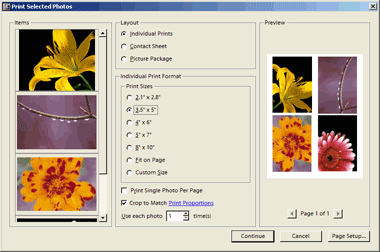
Printing within Album is handled very well. A multitude of options is available
from standard size prints, contact sheets and picture packages.
Album Summary
Overall, Adobe Album 2.0 provides an excellent system for categorizing and
cataloging your images. Through tagging, searching for a particular set of images
is incredibly easy. I appreciated that the software imported the metadata from
the image and oriented them vertically or horizontally as needed within the
program properly based on that data. I would like to see a metadata pane or
EXIF pane to show me the metadata for the image in a much easier format rather
than having to choose properties from each image in order to view it, similiar to
the one used in Photoshop Elements.
The help file provides substantial information on using Album 2.0 and is easily
searchable. Help is not
context sensitive though so when you need help, you
have to search for it. Most of the Creations are done in Acrobat format. While
Acrobat Reader
is free and is found on almost every computer, I would prefer not to
have to view an e-card with that particular software. Another great feature
of the software is that it recognizes already imported media, which prevents
duplicates in your catalog. Finally, for those people who have different sets
of images to catalog, Album can create multiple catalogs.
Pricing
Adobe
Photoshop Elements 2.0 plus Photoshop Album 2.0 is packed full of features
and yet still affordably priced. The suite is available online from the Adobe
Store for $129.00 US plus a $30.00 US mail in rebate. Adobe Photoshop Elements
can be purcahsed from Adobe for $99.00 and Adobe Photoshop Album for $49.99.
The software is also available from Amazon online for $115.99,
$89.99
and $46.99
respectively before any applicable rebates..
Conclusions
Adobe Photoshop Elements 2.0 plus Adobe Photoshop Album 2.0 provides all the
functionality that is needed in order to edit and improve your digital photos
while keeping them organized. Photoshop Elements 2.0 is feature packed with
options that would normally only be expected in a higher priced package. Easy
to use recipes make tasks such as color correction, removing scratches and correcting
red-eye a snap while it has more advanced tools for your needs. Photoshop Album
makes cataloging you images as easy as drag and drop. Calendars, greeting cards,
and video CD's are all created with ease.
Overall, I am very happy with this bundle. Adobe Photoshop Elements allows
me to perform the same tasks I would in my darkroom plus more. I have thousands
of 35mm slides and negatives that I have sitting in boxes or binders. An archiving
system similiar to Adobe Photoshop Album would be wonderful for those. I can
even catalog them by scanning them and adding their location as a note to the
file in Album. Together, Photoshop Elements 2.0 plus Photoshop Album 2.0 represent
a full featured suite of applications for any photographer, digital or not.
Return to FreeHelp Software
Reviews Home Page
Return to the FreeHelp Headquarters
Return to PCIN.net Home Page
|