|
If you have an email account, then you get SPAM, Unsolicited Commercial Email,
Junk Email, or whatever else you want to call it. If you have a web site of
your own, then the amount of junk email you get is probably even higher. The
increase of junk email has brought a number of products to the marketplace
that claim to reduce or all together eliminate your junk email. I previously
reviewed iHateSpam by Sunbelt
Software, and have now had a change to review the newest version
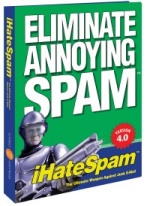
of the product, iHateSpam
4.0.
Installation
 The
software installed easily. There are a few simple steps/questions that you
follow, and then the software is installed. Unlike some of the other software
that I've tested, iHateSpam is NOT an Outlook add-in. Since it works with numerous
applications, it runs when Windows starts up, and then protects whichever software
you have chosen. The software can be used with a number of products, including
Outlook 2000, XP, 2003, Outlook
Express 5, 6, MSN
Hotmail, Eudora and IncrediMail.
I tested it using Outlook 2003. The
software installed easily. There are a few simple steps/questions that you
follow, and then the software is installed. Unlike some of the other software
that I've tested, iHateSpam is NOT an Outlook add-in. Since it works with numerous
applications, it runs when Windows starts up, and then protects whichever software
you have chosen. The software can be used with a number of products, including
Outlook 2000, XP, 2003, Outlook
Express 5, 6, MSN
Hotmail, Eudora and IncrediMail.
I tested it using Outlook 2003.
There is a small icon that appears in the system tray (this can be disabled)
that allows you to quickly view the Spam Quarantine (and mark messages as Not
Spam! from there), as well as disable the software. The included help file
is quite thorough in the information that it provides.
Testing
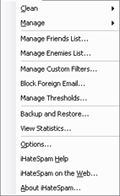 iHateSpam
works as expected. When Microsoft Outlook 2003 was started, there was
a new toolbar and a new menu that appeared. When messages arrive, the iHateSpam software filters it and moves it to the Junk Email folder that was created.
Unlike other software, it does not have a suspected folder. The message only
gets moved if iHateSpam truly thinks it is junk mail. If the message wasn't
moved, but is junk mail, then you can click on the Is Spam! button on the toolbar,
and it marks it as junk and moves it. If you go through your Junk Email folder
and find messages that shouldn't be there, then you can click the Not Spam!
button, and the message will be moved back to the Inbox. It is important to
do this training. if you move the messages yourself, the software won't be
able to "learn" what you think is spam and what isn't. iHateSpam
works as expected. When Microsoft Outlook 2003 was started, there was
a new toolbar and a new menu that appeared. When messages arrive, the iHateSpam software filters it and moves it to the Junk Email folder that was created.
Unlike other software, it does not have a suspected folder. The message only
gets moved if iHateSpam truly thinks it is junk mail. If the message wasn't
moved, but is junk mail, then you can click on the Is Spam! button on the toolbar,
and it marks it as junk and moves it. If you go through your Junk Email folder
and find messages that shouldn't be there, then you can click the Not Spam!
button, and the message will be moved back to the Inbox. It is important to
do this training. if you move the messages yourself, the software won't be
able to "learn" what you think is spam and what isn't.

The toolbar also lets you add senders to your Friends or Enemies list. You
can add a specific address, or a whole domain. For instance, since there are
several PCIN.net addresses that you may receive mail from, rather than just
adding the editor address to your Friends list, you could add the PCIN.net
domain to your friends list. Both the Friends and Enemies list are editable.
You can add and remove addresses at any time.
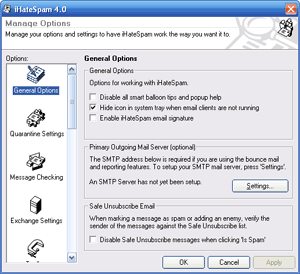 The
software has a lot of options. From either the toolbar or the iHateSpam menu,
you can modify General Options, Quarantine Settings, Message Checking, Exchange
Settings, Toolbar, Learning, Personalization, Updates, Is Spam & Not Spam,
Friends & Enemies, Confirmations, Parental Controls, Report Templates, Smart
Features, and Spam Filters. These are all things that you may go into occasionally
to tweak your settings. The most power setting to change is in the iHateSpam -> Manage Thresholds... menu. There are 5 threshold levels, with the default
being Most Spam. If you find it isn't finding enough spam, then you can raise
the threshold. if you think it is finding too much as spam, then you can lower
the threshold. For all my testing I left the setting at the default Most Spam. The
software has a lot of options. From either the toolbar or the iHateSpam menu,
you can modify General Options, Quarantine Settings, Message Checking, Exchange
Settings, Toolbar, Learning, Personalization, Updates, Is Spam & Not Spam,
Friends & Enemies, Confirmations, Parental Controls, Report Templates, Smart
Features, and Spam Filters. These are all things that you may go into occasionally
to tweak your settings. The most power setting to change is in the iHateSpam -> Manage Thresholds... menu. There are 5 threshold levels, with the default
being Most Spam. If you find it isn't finding enough spam, then you can raise
the threshold. if you think it is finding too much as spam, then you can lower
the threshold. For all my testing I left the setting at the default Most Spam.
I used the software for a week, training it as often as I could, and ended
up training it on 3400 junk email messages. Then I started to keep track of
things. After 3 days, it had found 171 messages as spam, with 5 of them actually
being good messages. The software had missed 36 messages that were spam. This
is an acceptable, but not great, success rate of just about 80%. I then trained
it on another 900 messages. After using it for another week,
it had found 547 messages as spam, with 20 of them actually being good messages.
The
software
had missed 102 messages that were spam. The success rate improved to about
85%.
There were a few disappointments in using the software. When you are marking
a large number of messages as spam, you can only choose 30 at a time. When
I was trying to train the software with a collection of junk messages that
I had, it took quite a while to get this done.
There were several messages that came in that were spam, and the software
kept leaving them in the Inbox. I would mark it as spam each and every time,
but these same messages would still be left in the Inbox. I guess this could
be a result of a number of things, but it was disappointing that the software
could not distinguish between them and good messages. On the other hand, I
also had one type of message, that was always marked as spam, even though it
wasn't. Each and every time I would mark it as being good, but it would always
end up in the junk email folder.
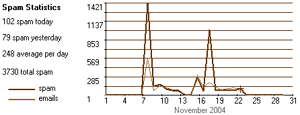 One
neat (but perhaps useless) feature of the software is in the iHateSpam -> View
Statistics... menu. There are several graphs you can view that show spam activity.
As you can see by the graph on the left, I used the software for just over
2 weeks. There are 2 large peaks where I trained the software with the junk
mail collection I have. It also shows the number of spam messages received
today, yesterday, and an average per day since the software was installed.
Overall, including the messages that I already had that I knew were junk, the
software processed 3730 pieces of junk mail! One
neat (but perhaps useless) feature of the software is in the iHateSpam -> View
Statistics... menu. There are several graphs you can view that show spam activity.
As you can see by the graph on the left, I used the software for just over
2 weeks. There are 2 large peaks where I trained the software with the junk
mail collection I have. It also shows the number of spam messages received
today, yesterday, and an average per day since the software was installed.
Overall, including the messages that I already had that I knew were junk, the
software processed 3730 pieces of junk mail!
Conclusions
As I mentioned above, I was disappointed in what seemed to be a very slow
ability to learn what was junk and what isn't junk. I recognize that other
reviews achieved significantly higher results that what I obtained. I
know that I could have tweaked more of the settings to optimize the software,
but
I feel
that
it should have had better results "out of the box". That
being said, it still did a good job. The flexibility to monitor many different
software
packages,
along
with the incredible number of options, certainly makes this software you should
try.
iHateSpam comes with a 30-day trial. if you decide to purchase it, you can
do so directly
from Sunbelt Software for $19.95. You may also be able to find it online
elsewhere for slightly
less.
Return to FreeHelp Software
Reviews Home Page
Return to the FreeHelp Headquarters
Return to PCIN.net Home Page
|