|
I have reviewed several Paragon
Software Group titles over the
years, and posted about them in the PCIN.net
Update blog. I've always
been impressed by their products. The trend continues to this day. I
recently obtained a copy of Hard
Disk Manager
2008 and it builds on its
predecessors and becomes an even better product.
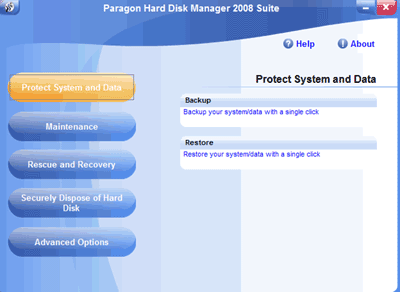
As with previous versions, Hard Disk Manager
2008 comes with a
variety of utilities. It comes with utilities in the following
categories:
- Protect System Data
- Maintenance
- Rescue and Recovery
- Securely Dispose of Hard Disk
- Advanced Options
Protect System and Data
You can choose to either backup or restore your system. This will
backup a complete hard drive. You can save the backup to a network
location, another drive on the system, or burn it to CD or DVD (the
backup with span across multiple discs). There are a few options that
you can tweak such as changing the compression level, adding a
password, along with a few other options. You can also schedule the
backups. This would be particularly useful when you are not burning the
backup to disc. You could schedule it to run in the middle of the
night. I didn't take the time to run a full system backup of my system,
but I did notice that any partition on your system can be backed up, so
I backed up a CompactFlash card that I had been using. I had troubles
with a system recognizing it, so I backed up a card that was working
and that had specific data that I needed, and then restored it to
another card. The process worked perfectly.
Maintenance
 This
section allows you to defragment your system, or copy system/data and
migrate to a new disk. The latter is just a one-stop way to do what the
main partitioning manager does. I'm an advanced user, so I skipped this
test in favour of the test later on. This
section allows you to defragment your system, or copy system/data and
migrate to a new disk. The latter is just a one-stop way to do what the
main partitioning manager does. I'm an advanced user, so I skipped this
test in favour of the test later on.
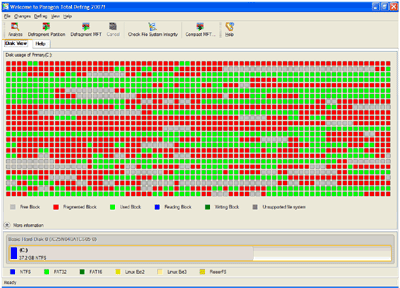
The defrag utility seems quite good. It has the familiar look and
feel of other common defrag utilities. The screenshot on the right
shows the fragmentation level of my hard disk. The red blocks are
fragmented files. The green blocks are used, but not fragmented, and
the grey blocks are unused. This was on a system that only had a 40GB
hard drive.
I tried to click the Analyze button the toolbar, but it told me the
system was in use and had to rebooted. It took about 5 minutes for the
analysis, but then said it was interrupted (even though it hadn't). I
rebooted and ran it again, and it still came up with the same error. I
just ignored the error and tried to defragment the system.
Again, because I wanted to defragment the system/boot drive it had
to do this outside of Windows. The computer restarts and you go
into a pre-windows mode when other programs/files aren't loaded.
The defrag started on its own without me having to do anything. The
full defrag took about an hour, and when Windows XP loaded again and I
started the defrag software, there were very few red blocks left.
I tried both the analysis and the defrag on another system, and I
didn't have to reboot to do the analyze. The defrag was successful on
the other system as well, as it was on this test system.
Rescue and Recovery
The backup/restore option mentioned above is an operation for an
entire disk. If you only want to backup certain files, you can use the
Transfer Files option here. You can choose a listing of files and/or
folders you wish to backup, and then save them either to another drive
(local or network) or burn it to disc. You can then restore them later.
For most people, this is a more practical backup method that the entire
disk backup above. This allow you to backup your documents folder for
safe keeping (or other important files).
Securely Dispose of Hard Disk
This is not something that I was able to test, as I did not have a
hard disk that was available to do this on. The software is supposed to
let you delete a hard disk's contents securely. This means that it will
delete the information and then write data to the disk again so that
the original data is unretrievable. You can choose how many times data
should be written and erased. The more times you do this, the less
likely it is that data can be retrieved.
Advanced Options
In a way, it's kind of odd that the most powerful feature of the
program (and probably the feature that people buy the software for) is
in the Advanced Options section. This is where you can perform
the traditional partition operations.
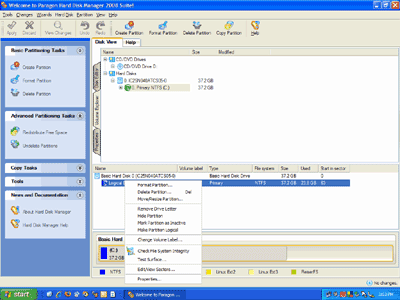 I
chose to resize my 40 GB partition down to 30 GB. I then created a 10GB
partition and wanted it formatted as NTFS. As you choose the various
options, the system saves the choices and then you "apply" them all at
once. It then steps through your choices. Since this was my system/boot
drive, the system had to rebooted into that pre-Windows mode. The tasks
I mentioned only took 3 minutes. I rebooted and Windows told me that my
hard drives needed to be checked. They were checked (with no errors)
and then Windows loaded fine. I then did the steps in the reverse
(deleting the new partition and resizing the partition back to its
original size) and it only took a few seconds. I
chose to resize my 40 GB partition down to 30 GB. I then created a 10GB
partition and wanted it formatted as NTFS. As you choose the various
options, the system saves the choices and then you "apply" them all at
once. It then steps through your choices. Since this was my system/boot
drive, the system had to rebooted into that pre-Windows mode. The tasks
I mentioned only took 3 minutes. I rebooted and Windows told me that my
hard drives needed to be checked. They were checked (with no errors)
and then Windows loaded fine. I then did the steps in the reverse
(deleting the new partition and resizing the partition back to its
original size) and it only took a few seconds.
In this section you can also install the Boot Manager. This lets you
easily boot from various partitions. I'm not sure how popular this is
today. Before virtualization, the only way you could run various
versions of Windows and various versions of Linux on the same computer
was to multi-boot. You'd have WIndows on one partition and Linux on
another. The Boot Manager makes this process easy. Installing the Boot
Manager worked fine, but when I tried to deactivate it, it didn't
actually remove the Boot Manager. I launched the partition management
software again and chose to update the MBR and that got rid of the Boot
Manager software.
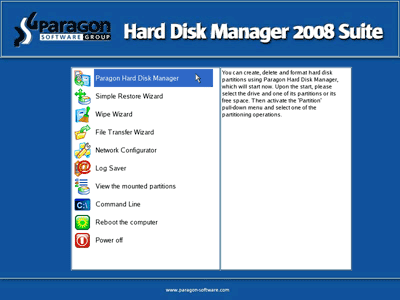
The software has an excellent help file with detailed explanations and screenshots of how to use the software.
As I've mentioned in other reviews, I am fond of bootable CDs and as
with previous version, Paragon Hard Disk Manager 2008 has the ability
to create a bootable CD so that you can do many of these partition
operations without installing the software.
Conclusions
Paragon Hard
Disk Manager 2008
is an full-featured program. As is usually the case, purchasing a
bundle like this is a great value. The entire suite is regularly
$79.95, but can often be found for less than that.
To be honest, I haven't used many of the competitive products for
years. The Paragon partitioning software has served my needs well, and
I'm sure that Paragon Hard Disk Manager 2008 will be an important
utility in my PC maintenance toolbox.
Return to FreeHelp Software Reviews Home Page
Return to the FreeHelp Headquarters
Return to PCIN.net Home Page
|