I have been using Adobe Photoshop Elements since Adobe first released version 1. I have always maintained that Elements had just about all the features most people will need for their photography, though as a serious hobbyist, there were always a few items I missed from the full version of Photoshop. With each successive release, the list of items I hoped to find grew smaller and smaller and Adobe Photoshop Elements became better and better. With the release of version 5, that trend continues.
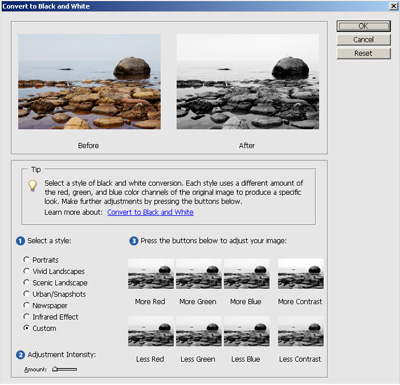
One of the shortcomings I have always found with Adobe Elements has been lack of a good method to create dramatic black and white photographs. With the new version, Photoshop Elements now offers a Convert to Black and White option. The controls for converting to black and white include several preset items as well as options for increasing or decreasing the amount of red, green or blue in an image, increasing or decreasing the amount of contrast in the image and a slider for controlling the degree of the adjustments made. For anyone who has used the channel mixer in the full version of Photoshop or other image editing programs, this will have a familiar feel to it even if the interface is different. Using this control is similiar to how rational black and white photographers created their images, through the use of coloured filters.
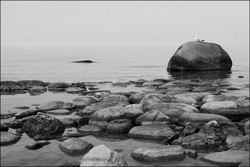

Convert to Grayscale (left) and New Black and White Conversion (right)
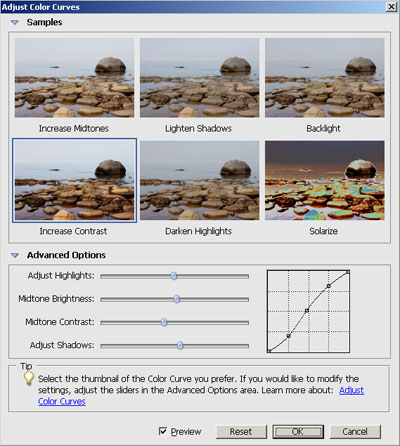
Another welcome addition to Photoshop Elements 5.0 is the ability to adjust the color curve of your photograph. Using curves helps you to fine tune the overall look of your photograph adjusting highlights, shadows and mid tone brightness and contrast. I use curves on many of my photographs to deepen my shadow areas while adding a little more brightness to highlight and mid tone areas for more punch in the photograph. The nice thing about curves is it does not use a liner adjustment and produces a more pleasing results than only using levels.
Another advancement Adobe made with Photoshop Elements 5 has been with the Organizer. In version 4, when selecting photos by folder location, only images imported into the organizer were displayed, and as such, only the folder locations were displayed. In Photoshop Elements 5.0, when you select Folder Location, a complete directory listing is available for you to browse, even if the photos have not been imported into the organizer yet. I do not always want to import every photograph into the organizer, and now I do not have too.
There have been a few cosmetic changes, as well as improvements to the import photos script, better looking web galleries, and better sharpening algorithms. Adobe has done a good job at easing the task of creating different ways to show of your photos without having to do a lot of technical work, from slideshows, web galleries, and DVD movies. Adobe has also added many new cameras to their support for RAW files for those photographers who want a little more control with their photographs.
The first thing I encountered when I tried to review Adobe Premiere Elements 3.0 was that the software would not run on my main system, an AMD Athlon XP 2600+ machine with 2.5 GB RAM. Adobe Premiere Elements requires a processor that supports SSE 2 instruction sets, something my processor does not support, though it is not very old. Fortunately, I have another system that I was able to use with the software, an Intel 1.8 GHz P4 with 2 GB of RAM.
Other than a few very small projects, including my review of Adobe Elements 1.0, I have very little experience with video editing. I am familiar with the techniques involved in creating a movie though and was impressed with how easy the software was to use. Importing files was very easy, and the interface very intuitive. Even for someone new, they should be up and running in no time.
My first project involved importing video to remix from an existing DVD my brother had created. This was a full length DVD with multiple movies that I attempted to recreate in a different order. Importing the video took no time at all, however the system took close to two hours to import the audio form the different tracks. Once imported, it was easy for me to add each story to the storyboard, and add transitions and titles.
The also tested various features using sample files supplied by Adobe. A large collection of photographs and a series of movie files helped to emulate how this program would be used in the real world. Again, the application was very easy to use.
Something new Adobe has added to Premiere Elements 3.0 is Stop Motion Animation. Using your camera and Premiere Elements, you can now create the still frames necessary for stop motion animation. The process is simple and effective, but like all tools and effects, best when used in limited quantities.
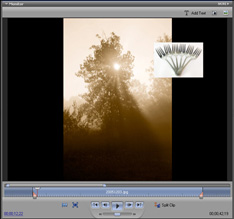
Adobe has made it easier to add titles to movie files, editing directly on a clip without having to use a separate module. I also liked the ability to create picture in picture effects. When I first saw that I could create a picture in picture as part of the movie, my mind started racing with the photo slideshows I could create with this software!
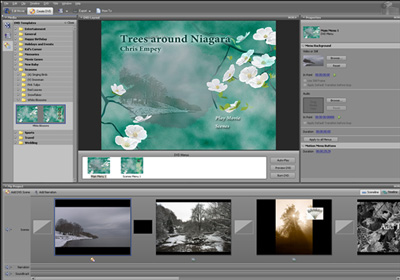
DVD creation once my projects were complete was easy. There is a large variety of DVD menus to choose from including the ability to customize the menus. Though easy, the process is a lengthy one. The first step, encoding the DVD took a very long time on my system. The first DVD I created took several hours to encode and was jumpy during playback though the DVD's on the other projects played fine.
Pricing
Adobe Photoshop Elements 5.0 is available from the Adobe Store website for $99.99 US, Premiere Elements is also available for the same price. When purchased together, the bundle costs $149.99
Amazon.com sells Adobe Photoshop Elements 5 for $86.99, Premiere Elements 3.0 for $89.99 and the two products together for $119.99.
Conclusion
Having used every version of Photoshop Elements, I was pleasantly surprised by the inclusion of a few features I have long thought would make this the best product for amateur and serious hobbyist photographers, curves and better black and white support. Those additions, along with several other features make this a worthy upgrade from Elements 4.0.
Adobe Premiere Elements 3.0 is the third edition of Adobe's consumer level video editing package. Unlike Adobe Photoshop Elements 5, I had some difficulties with this product. Installation was not possible on my main system as the software requires a processor with SSE 2 instructions and my Athlon XP 2600+ processor does not include this instruction set (newer AMD processors and Intel Processors do). I was able to install the software on my second system though it ran slow. The feature set of Premiere Elements is excellent and apart from the speed on my test machine, the software was easy to use and quick to learn. I am sure that the performance on newer PC's would be fine, and have no doubts that today's Dual Core processors would provide a dramatic speed boost.
Together, Adobe Photoshop Elements 5.0 and Adobe Premiere Elements 3.0 provide a complete photo/video editing suite. Both products are feature packed and easy to use. If the black and white conversion option isn't enough to compel you to upgrade to the newest version, the host of other features should.
Return to FreeHelp Software Reviews Home Page
Return to the FreeHelp Headquarters
Return to PCIN.net Home Page