|
Installation
I began the review of Virtual PC with a fresh installation of
Windows 2000 Professional. The latest drivers for the hardware
were downloaded and installed, Windows 2000 Service Pack 2 was
applied and all of the fixes from Windows Update were applied
with the exception of the installation of Windows Media Player
7.1. Other software installed included Microsoft Office XP, with
SP1, WinZip, and the TweakUI and SendToX extensions from Microsoft.
ATI Multimedia Center was also installed, including it's TV Tuner
applications and DVD player. The installation of Virtual PC 4
by Connectix Corporation
was straight forward, very smooth and without error. Upon completion
of the installation the software prompted me to reboot. I then
installed the update to version 4.2 freely downloadable from their
website and rebooted once again.
Creating Virtual Machines
I began the evaluation with an installation of Windows 2000 Professional
which Connectix provided as an OS Pack. These packs are preset,
OEM versions of many operating systems. They are preconfigured
to be used with Virtual PC, including support for the drivers
that Virtual PC will emulate. I unzipped the virtual drive from
the OS Pack CD to my hard drive and set Virtual PC to use this
image. When it started, it was as though I were running the OS
for the first time as it would come preinstalled on desktop computer,
requiring me to accept the license agreement and enter the CD
Key for the operating system. It could not get any easier than
this.
After running the Windows 2000 Virtual PC for a while, I installed
Mandrake Linux 8.1. This install also went very smoothly. I did
not have a Linux OS pack, so I used Virtual PC to create a default
drive. I had a copy of Mandrake 8.1 I downloaded from their website
and burned to CD. The Virtual PC recognized the bootable CD and
immediately began the installation process.
Mandrake recognized all of the virtual hardware and I was easily
able to connect to my Internet Service Provider with a server
assigned IP address. To test the responsiveness of the system,
I set up a sub domain and running Apache as it came bundled with
Mandrake, mirrored my personal web site on the Mandrake Virtual
PC. A configuration error prevented me from running my cgi scripts,
but the rest of the content loaded very quickly.
The third Operating System to be installed under Virtual PC was Microsoft XP Professional.
This was the most taxing on Virtual PC, taking almost 75 minutes
to complete the installation. It was also the least responsive within
the Virtual PC environment. This stands to reason though, being
the post power hungry OS we tested. I found Windows XP to run too
slow on my computer to be an effective tool.
Features Virtual PC provides drag and drop support between the host operating
system and the guest operating system (the Virtual OS). I found
the feature to be initially slow to respond, having to hold my
files over the Virtual PC desktop for several seconds before it
recognized the request. Once it did, though, the transfer was
quite quick. Downloads across my local LAN as well as over the
Internet occurred just as fast on the guest operating system as
on the host.
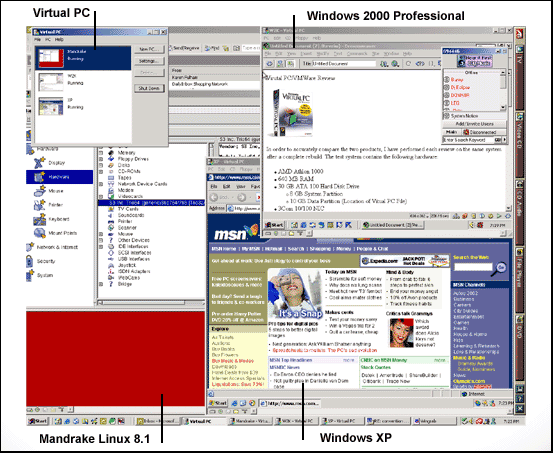
Virtual PC had no difficulties running all three Virtual operating
systems simultaneously. By default, it suspends operations of
each background Virtual PC's. I turned this off and was able to
continue processing (at a much slower rate) on two Virtual PC's.
The last VPC to be accessed would still be suspended. Running
all three Virtual PC's, the Virtual PC Application, Internet Explorer
and Microsoft Outlook, the system performance was only slightly
degraded. Performance within the Virtual PC windows was much slower
than when only running a single VPC though.
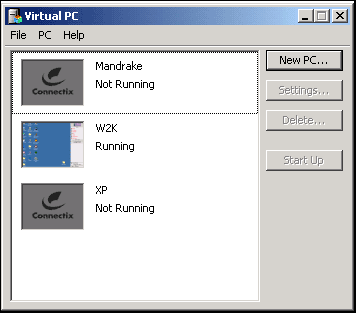
One very nice feature about Virtual PC is the Virtual
PC Window. This window provides real-time thumbnails of all of
your Virtual PC's. I had set up Mandrake Linux 8.1, Windows 2000
Pro and Windows XP as virtual PC's. As you can see from the image,
it is very easy to track the progress of any virtual machine without
having to cycle through each window. This is especially useful
when running multiple Virtual PC's.
Virtual PC is very configurable. You can adjust the amount of
RAM each OS will have available to it. In each of my test I set
Virtual PC to use 192 MB of RAM. You can also configure how the
software access floppy and CD-ROM drives, as well as how it obtains
a network address. Choices include a virtual network card, which
I used for Mandrake; this obtains an IP address from your network
DHCP server or can be assigned, NAT (Network Address Translation)
which uses an internal IP address and routes information between
the host OS and the guest OS, or no network connection. I used
NAT for both the Windows 2000 and Windows XP tests.
The only problem I encountered with Virtual PC was
as the size of the disk image grew larger (my Windows 2000 image
doubled in size to 3.5 GB), performance degraded terribly when
switching between the host and the guest operating system. This
was not very noticeable on the Mandrake installation, however,
the Windows 2000 installation showed quite a performance loss.
Once fully operating in the guest OS, responsiveness certainly
increased.
Conclusions
Virtual PC enables you to run more than a single operating system on one computer.
This is a great way to test new software, determine how a website
looks on other platforms or give you a way to experiment without
worrying about messing up your main operating system. With Virtual
PC, you can easily make a copy of your guest OS, make changes to
the operating system or software installed in the guest OS, and
not have to worry about a complete rebuild if something goes wrong.
Simply revert to the copy. At $199 US, the software is not inexpensive.
On top of the cost of the software, you must also be licensed for
the guest operating system you will run. A product like this is
better suited to a developer or web designer who needs to view an
application or website across multiple platforms without having
to maintain several physical computers.
Return to FreeHelp Software
Reviews Home Page
Return to the FreeHelp
Headquarters
Return to PCIN.net Home Page
|