|
Virtual Computing continues to grow as the need for multiple dedicated systems
increases while costs and access to the physical space necessary for multiple machines
is not available. IT professionals, developers and hobbyists all use virtual
computing to access multiple systems from within a single PC.
VMware
Workstation 4.5 is the latest version of the popular virtual machine software
from VMware. VMware Workstation
works by allowing multiple virtual systems to be run on one physical machine,
creating a virtualization layer beween the host operating system and the guest
operating systems, allowing each system to operate with it's own virtual hardware;
CPU, memory, disks, I/O
and devices. VMware vitual machines can run versions of Microsoft
Windows, DOS, Netware
and Linux.
The Interface
 VMware
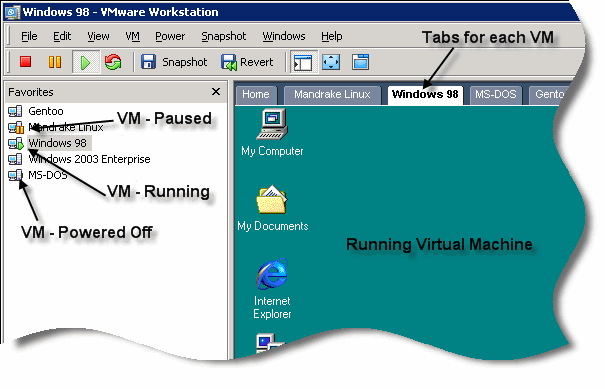
has updated the interface to the product since VMware
Version 3.1 was reviewed. The new interface now provides one window with
access to each of your virtual machines. Virtual machines may be run in a window,
full screen, or using VMware's quick switch mode which provides the benefits
of using the full screen to view your virtual machine with quick access to other
virtual machines through a tabbed interface. A list of favourite virtual machines
appears on the left of the screen. Context sensitive menus provide quick access
to start/stop the guest OS, create
or revert to a snapshot, capture the screen or get access to the virtual machine
properties. VMware
has updated the interface to the product since VMware
Version 3.1 was reviewed. The new interface now provides one window with
access to each of your virtual machines. Virtual machines may be run in a window,
full screen, or using VMware's quick switch mode which provides the benefits
of using the full screen to view your virtual machine with quick access to other
virtual machines through a tabbed interface. A list of favourite virtual machines
appears on the left of the screen. Context sensitive menus provide quick access
to start/stop the guest OS, create
or revert to a snapshot, capture the screen or get access to the virtual machine
properties.
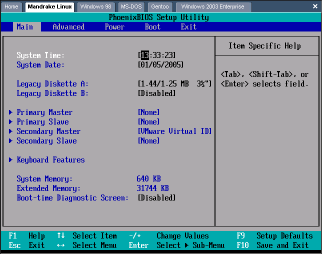
The BIOS for the virtual machines can be accessed as the virtual machines goes
through it's POST process, just as with a physical computer. The BIOS provides
a surprising amount of machine customization, though most of the options will
be best left to expert users. Other charactertics of the virtual machines may
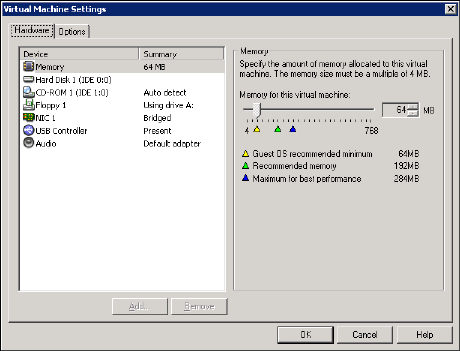
be changed by accessing the properties menu of the machine while it is powered
off. From here, virtual drives, networks and memory may be allocated.
Networking virtual machine options have not changed since our previous review.
Choices for network options still include:
- Bridged - the Guest OS will have a direct connection to the external network.
This configuration allows for services that need to be accessed from the outside
to be utilized.
- NAT (Network Address Translation) - the Guest OS will access the external
network through the host's address. NAT allows you to connect your virtual
machines to an external network in situations where you only have one IP address,
and that address is being used by the host computer.
- Host Only - the Guest OS can only connect to the host OS. It will not be
able to interact with other computers on the network.
- Do Not Use a network connection - No network connectivity to the guest
OS.
Performance
 The
test system used when evaluating VMware 4.5 was a 1.9 GHz processor with 512
MB of RAM. Virtual Machines will benefit from having more RAM in your system,
as well as having fast hard drives for you virtual disks. A maximum of 3.6 GB
or RAM may be allocated to any one virtual machine, and 4 GB or RAM may be allocated
between all running virtual machines. I found VMware 4.5 to perform better than
the previous tested version. Performance was initially slow on the host OS when
using VMware. I found that excluding the virtual machine files from my real
time virus scanning (Symantec
Antivirus Corporate Edition) completely solved that problem though. Transfer
speed of files between the guest OS and the host OS was not affected by this
exemption and still seemed fairly slow. Drag and drop file transfers can be
performed after installing the VMware Tools package. I found that file transfers
took about 10 seconds/mb in my setup. The
test system used when evaluating VMware 4.5 was a 1.9 GHz processor with 512
MB of RAM. Virtual Machines will benefit from having more RAM in your system,
as well as having fast hard drives for you virtual disks. A maximum of 3.6 GB
or RAM may be allocated to any one virtual machine, and 4 GB or RAM may be allocated
between all running virtual machines. I found VMware 4.5 to perform better than
the previous tested version. Performance was initially slow on the host OS when
using VMware. I found that excluding the virtual machine files from my real
time virus scanning (Symantec
Antivirus Corporate Edition) completely solved that problem though. Transfer
speed of files between the guest OS and the host OS was not affected by this
exemption and still seemed fairly slow. Drag and drop file transfers can be
performed after installing the VMware Tools package. I found that file transfers
took about 10 seconds/mb in my setup.
The VMware Tools package also provides better video drivers, support for shared
folders between the host and guest OS, time synchronization between the host
and the guest, automatic grabbing and releasing of the mouse as it enters or
leaves the guest OS area (otherwise you are required to click in the window
to make the mouse active, then CTRL-ALT to release the mouse) and support for
copy-paste between the host and guest. The installation package for VMware tools
can be installed automatically for Windows systems, and the help file provides
step by step instructions on installing the tools in a Linux system.
VMware 4.5 provides the ability to create a point in time snapshot
of a guest OS. This is useful for situations where you are testing different
configurations or new software products. Currently, only one snapshot per guest
OS can be created, though that will be changed in the next version of VMware.
VMware no longer has the Undoable hard drive state (now replaced by the ability
to create a snapshot) though individual virtual disks may be made independant
of the snapshot, allowing for changes to be saved regardless of the state of
the snapshot (persistant), or to be erased everytime the vitual machine is powered
down or reverted back to the snapshot (non-persistant).
Pricing
Pricing for VMware
Workstation 4.5 is $189 US for electronic distribution or $199 for a packaged
distribution. Upgrades from VMware 3.x are $99 for electronic distribution and
$129 for packaged distribution. The boxed version is available online from Amazon.com
for $179.99.
Purchases made after December 16, 2004 qualify for a free electronic download
of version 5.0 when it becomes commercially available.
Conclusions
VMware
Workstation 4.5 has made significant improvements since the last version
review by PCIN. The speed of the virtual machines has been improved and the
improvements to the interface are very welcome. The tabbed window allows for
quick access to each of your installed virtual machines. As an IT professional,
I need to access a variety of systems for testing, and for support. VMware Workstation
is an efficient and cost effective way to maintaint multiple system without
the need for multiple computers on my desk.
Return to FreeHelp Software
Reviews Home Page
Return to the FreeHelp Headquarters
Return to PCIN.net Home Page
|